ASC — Phone Call Tracking
Note
The following describes an opt-in feature for practices that have ambulatory surgery centers (ASCs). To enable this feature for your organization, contact your CSM. For more information, see ASC Setup: Enable ASC Features.
ASC staff access Pre-Admission or Post-Discharge Checklists to prepare patients for upcoming procedures or to check on a patient's status after a procedure has occurred.
You can access patient contact information directly from Pre-Admission or Post-Discharge Checklists. Options to record the status of call attempts also appear in these pages.
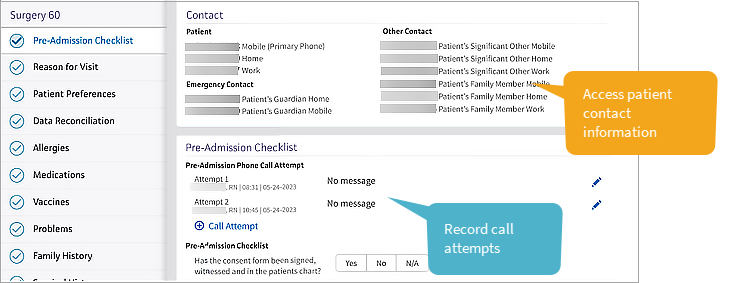
Access patient contact information and record call attempts
-
Access a checklist: Click a patient's name in the schedule view. In the patient briefing that opens, click Pre-Admission Call or Post-Discharge Call to open either checklist.
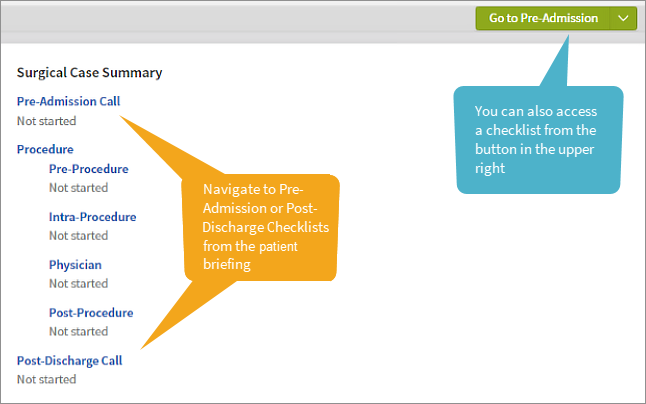
Alternatively, there is a context button in the upper right that displays Go to Pre-Admission or Go to Post-Discharge depending on the encounter stage that's currently active. Click this button to navigate to a checklist. -
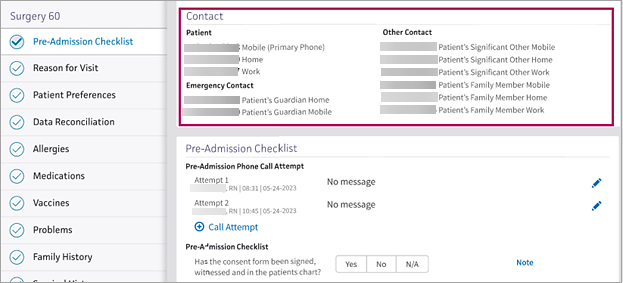
View patient contact information: In the checklist (either Pre-Admission or Post-Discharge ), the patient's contact information appears at the top of the page. This allows you to contact the patient without navigating away from the checklist.
-
Record call attempts: When you contact the patient, you can now click Call Attempt
 to log the attempt and its result.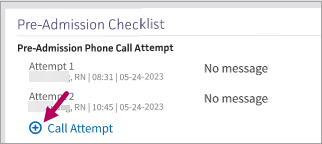
Select from options to indicate the status of the call attempt: Spoke with patient, Left message, No message, or Other.The information you record appears beneath the patient's contact numbers.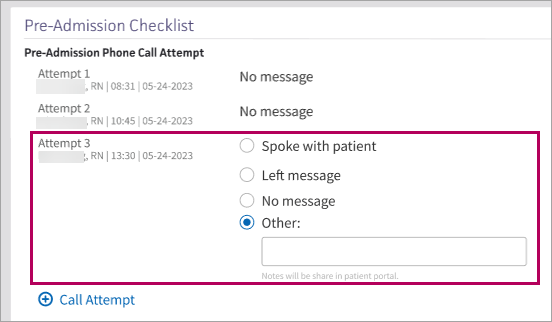
Edit call attempt information
Click a patient's name in the schedule view. In the patient briefing that opens, click Pre-Admission Call or Post-Discharge Call to open either checklist. In Phone Call Attempt, click the edit icon  to the right of an attempt.
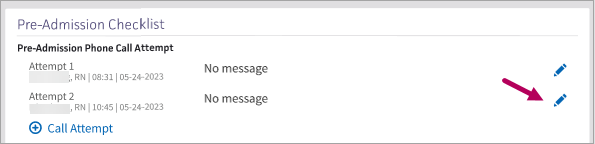
Update the attempt status.
Navigate between Pre-Admission and Post-Discharge call tracking workflows
Pre-Admission call tracking workflow
Prior to a patient's procedure, click their name in the schedule view to open the patient briefing. From the patient briefing, click either Pre-Admission Call or Go to Pre-Admission.
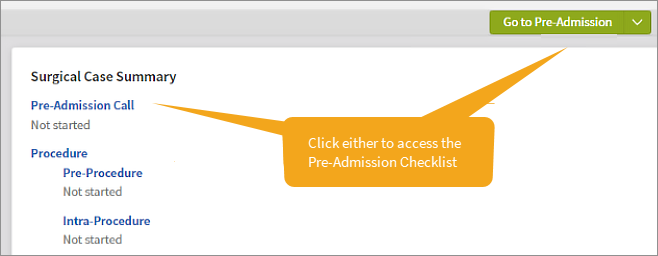
In the checklist, use the contact information that appears at the top of the page to call the patient.
-
Successful call attempt: If the patient answers, review the items in the Pre-Admission Checklist with them. Click Call Attempt
and select Spoke with patient as the result. Alternatively, select Other and enter a note about the call.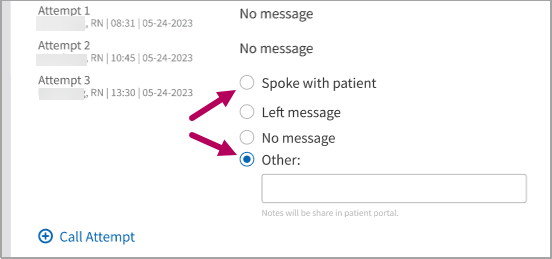
-
Failed call attempt: Click Call Attempt
and select the result that applies.
After completing your call attempts and reviewing the items on the Pre-Admission Checklist, click Sign and Close in the top right corner.
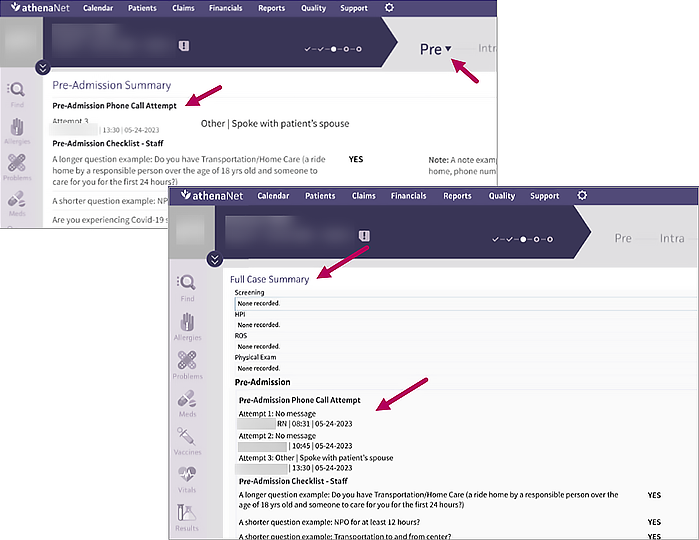
After signing, the phone call attempt information you added appears in the Pre-Admission Summary section under the Pre stage and in the Full Case Summary.
Post-Discharge call tracking workflow
After the patient's procedure, click their name in the schedule view to open the patient briefing. From the patient briefing, click either Post-Discharge Call or Go to Post-Discharge.
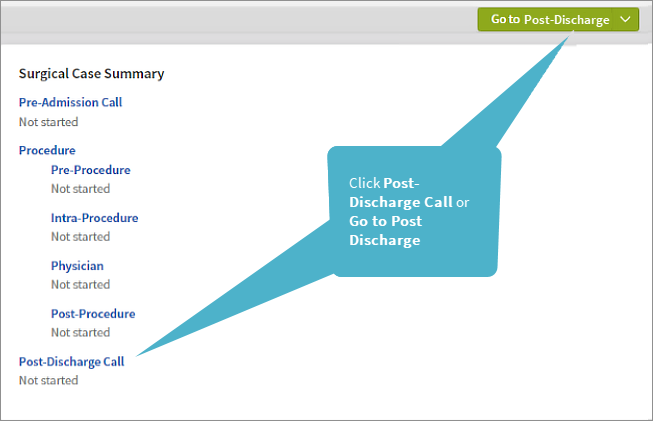
In the checklist, use the contact information that appears at the top of the page to call the patient.
-
Successful call attempt: If the patient answers, review the items in the Pre-Admission Checklist with them. Click Call Attempt
and select Spoke with patient as the result. Alternatively, select Other and enter a note about the call. -
Failed call attempt: Click Call Attempt
and select the result that applies.
After completing your call attempts and reviewing the items on the Pre-Admission Checklist, click Sign and Close in the top right corner.
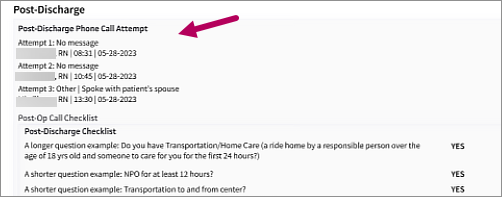
After signing, the phone call attempt information you added appears in the Post-Discharge section of the Full Case Summary.
Access Pre-Admission Checklist from Pre-Admission Schedule or Post-Discharge Checklist from Post-Discharge Schedule
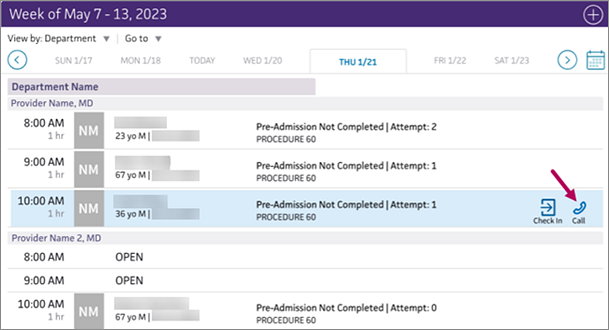
Clicking the call icon  from the Pre-Admission Schedule now brings you directly to the Pre-Admission Checklist. Similarly, clicking the call icon from the Post-Discharge Schedule now brings you directly to the Post-Discharge Checklist.
Note
If the case is checked in, clicking the call icon takes you to the patient briefing.
| Clicking the call icon from the |
Brings you to the |
|---|---|
| Pre-Admission Schedule | Pre-Admission Checklist |
| Post-Discharge Schedule | Post-Discharge Checklist |
| Checked-in appointment on the schedule | Patient Briefing |